
Getting started
When you first open DownShift, a short setup walks you through the basics. You can change every choice later in Settings.
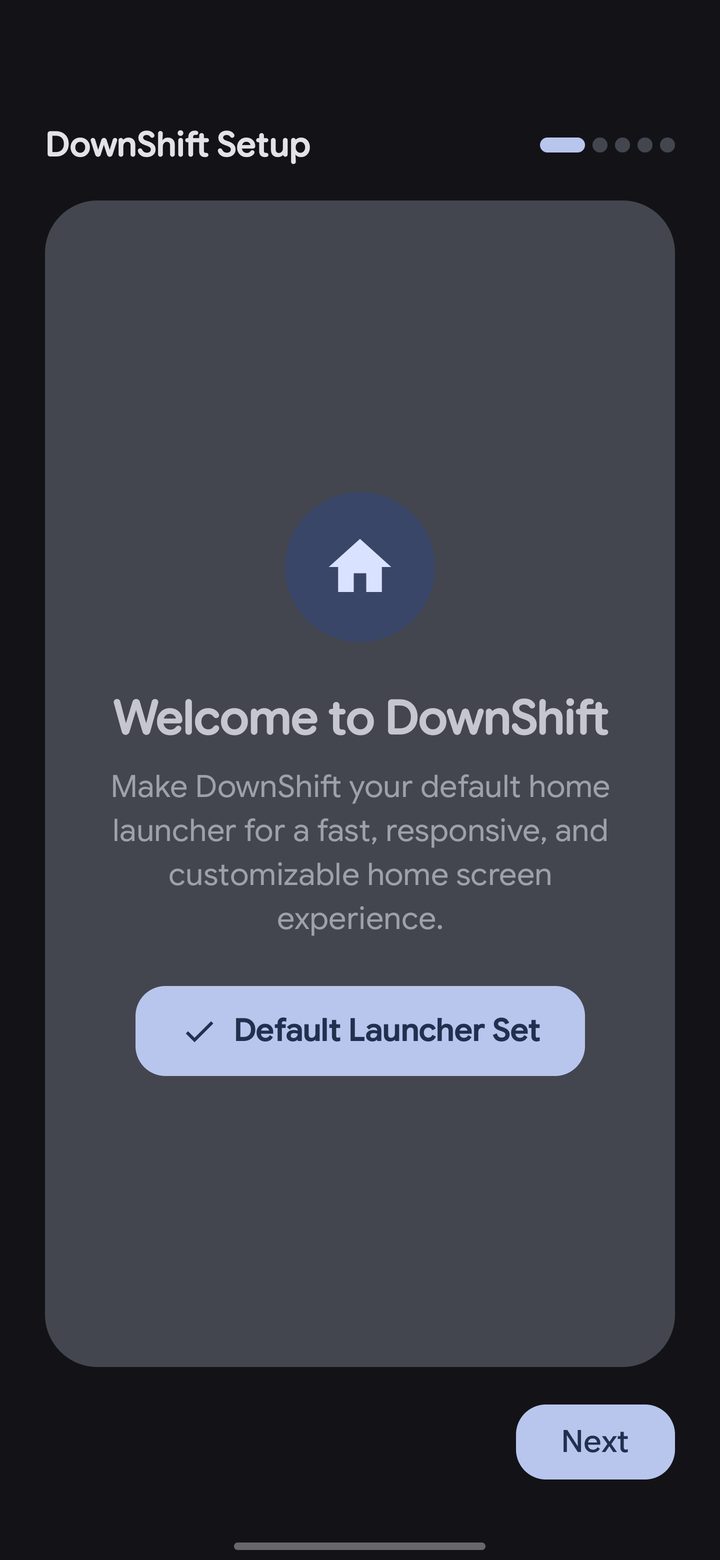
- Make DownShift your home app. Tap the button and pick DownShift. Once it's set, the button reads Default Launcher Set.
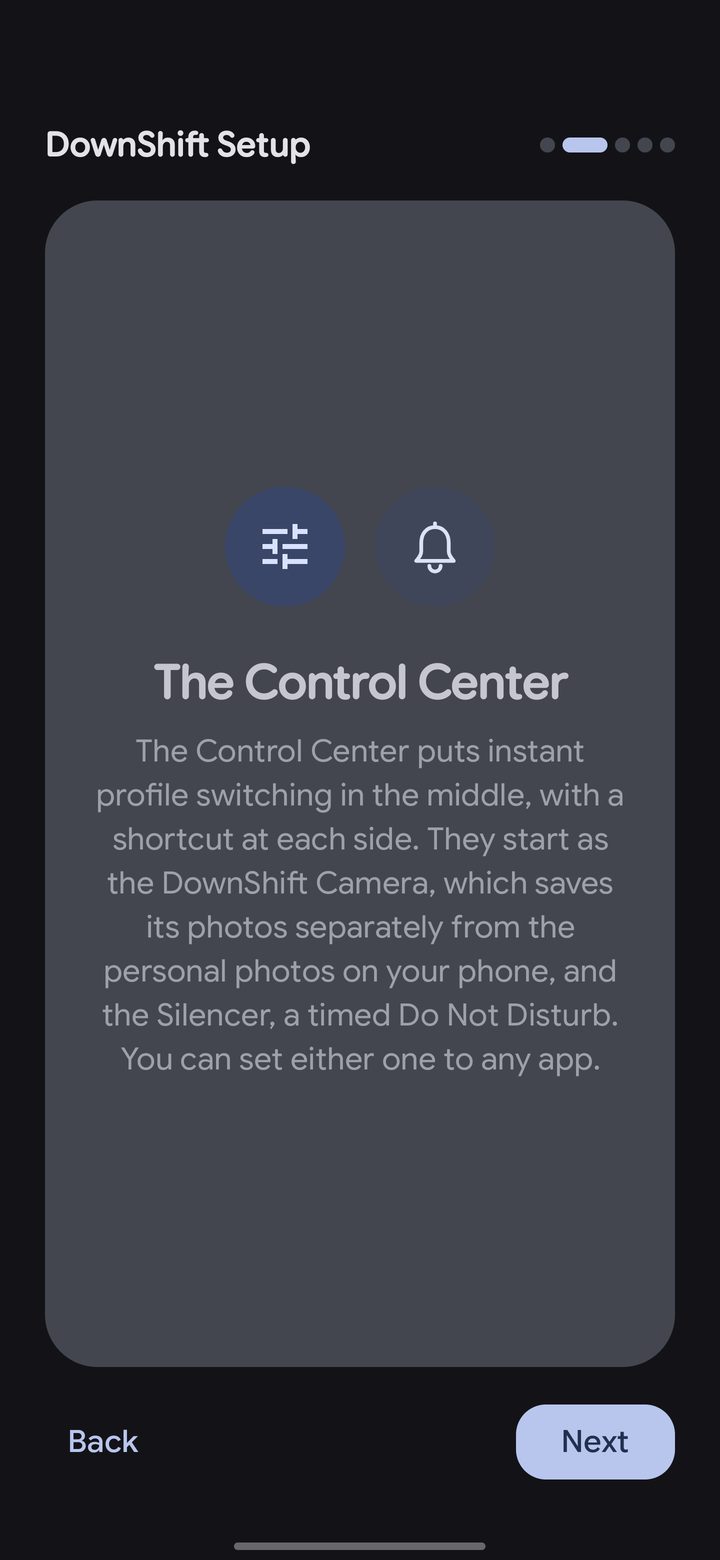
- Meet the Control Center. The bar under your dock has the profile pill in the middle and a shortcut in each corner: the Silencer on one side, the DownShift Camera on the other. You can set each corner to any app.
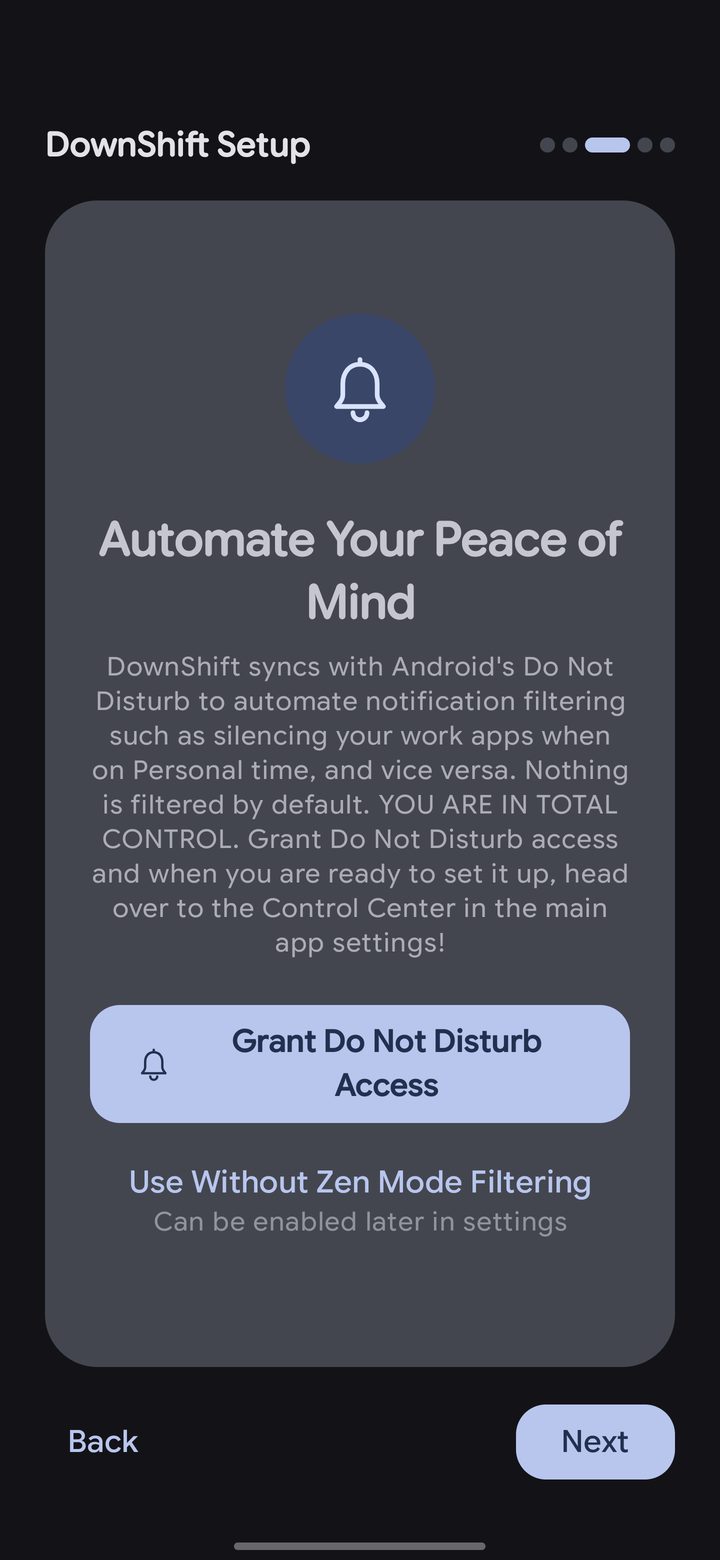
- Allow Do Not Disturb access if you want DownShift to quiet work apps on Personal time and the other way round, and for the Silencer. Nothing is filtered until you set it up. You can skip this and turn it on later.
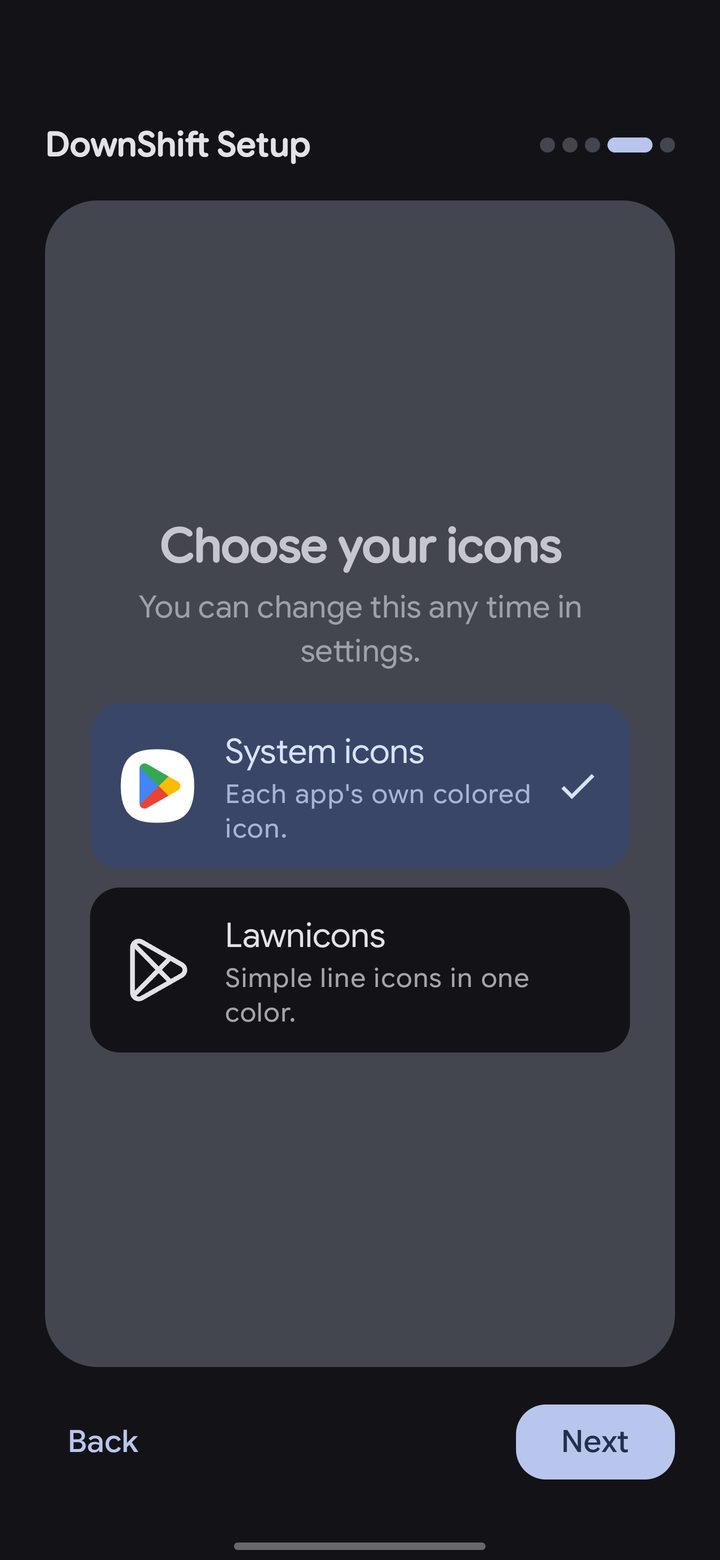
- Choose your icons: your apps' own icons, or Lawnicons, simple line icons in one color.
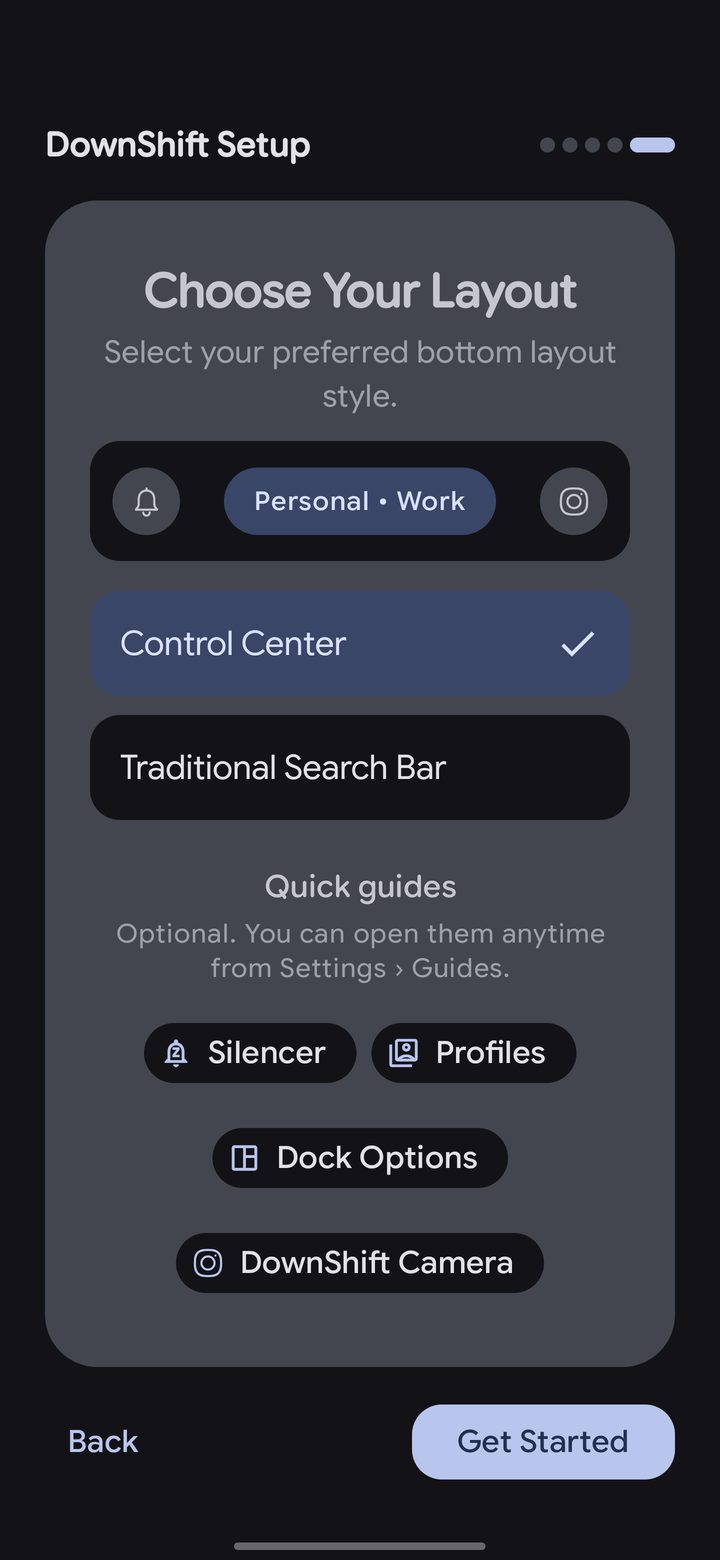
- Choose your layout: the Control Center, or a traditional search bar. The quick guides here open short tours, and they're always in Settings › Guides.